
Published: 23/06/2026
We’ve listened closely to feedback from our Copart Members and want to highlight some helpful tips and tools that can make bidding and buying online easier. Clear vehicle information can make a real difference when you’re deciding whether to bid, so it’s worth taking a moment to explore the tools and details available on Copart’s Lot Details pages before placing your bid. From checking the VRN and VIN to using the Total Cost Estimate Calculator, these details can help you make a more informed decision before auction.
1. Check The VRN And VIN
Before placing a bid, review the vehicle's VRN and VIN on the Lot Details page. These identifiers let you run your own vehicle checks, verify key information and spot potential issues before auction, giving you more confidence in what you're bidding on.
Some of this information is masked by default. Once logged in, simply click the VRN or VIN to reveal the full number, and use the copy icon next to the VIN to copy it straight into your own checks.

The VRN can be revealed from the Lot Details page once you are logged in.

The VIN can also be viewed and copied for your own vehicle checks.
The VIN also has a copy icon next to it, so you can copy the number easily. This can be helpful if you want to carry out your own vehicle checks before bidding.
2. Use The Total Cost Estimate Calculator
When deciding what to bid, it's worth remembering that the bid price is only part of the total cost. Fees and other charges apply on top, so the Total Cost Estimate Calculator can help you see the full picture before you commit.
Enter the maximum amount you're willing to bid, and the calculator will show your estimated total cost along with a breakdown of the fees involved. While it should be treated as a guide, it makes it easier to set a realistic budget and avoid bidding beyond what you're comfortable paying./p>
You can find the calculator on the Member Fees page.
You can also access it from a vehicle’s Lot Details page by selecting the Total Cost Estimate Calculator option. You must be logged in to use the calculator.
To use it, enter the price you are willing to bid at auction. If you are not sure what you will bid, enter the maximum amount you are willing to bid. This can help you get an idea of the maximum amount you may need to pay.
While the estimate should be used as a guide, it can help you set a realistic budget and bid with greater confidence.
3. Look For Buy It Now Options
Some lots may have a Buy It Now option. This allows you to purchase a vehicle immediately for the price listed by the Seller, where the option is available.
Buy It Now can be useful if you do not want to wait for the live auction, or if you would rather avoid the uncertainty of auction bidding. It gives you a clear sale price before you commit, which can help you make a quicker decision when the price works for your budget.
If a vehicle is available to Buy It Now, you will see a Buy It Now button in the bidding area on the Lot Details page. This button appears beneath the standard bid button and clearly shows the Buy It Now price, for example: “Buy It Now (£2,400)”.
If the Buy It Now button is not shown, the lot is not currently available to purchase using Buy It Now.
Some lots may include other purchase options where available. You can read more about bidding and purchase options in the Support Centre.
4. Review The Lot Details Before Bidding
The Lot Details page should be reviewed carefully before you place a bid. It provides important information to help you understand the vehicle’s condition, specification and recorded details. Checking information such as V5 availability, category, run condition, keys, odometer reading, damage information, fuel type and transmission can help you assess the vehicle more accurately, plan any further checks, and decide whether the lot is right for you.
Run condition is also shown within the vehicle information section on the Lot Details page. It gives a basic indication of the vehicle’s recorded drive status, such as Runs and Drives, Does Not Run, or Unconfirmed. This can help you understand what was recorded at the time of testing, but it should always be reviewed alongside the rest of the lot information and treated as one part of your checks, not as a guarantee of the vehicle’s full mechanical condition.
Don’t forget to check the Additional Information section and read any available notes, as these may contain important details that could influence your bidding decision.

V5 information is shown within the vehicle information section.
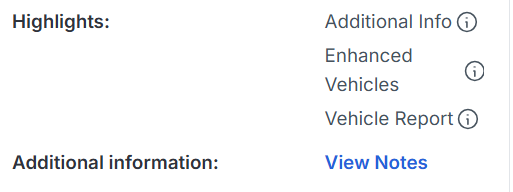
The Additional Information area may include notes that are worth reviewing before bidding.
5. Check Reports And Services
Further down the Lot Details page, you will find the Reports and Services section. This section can give you access to extra information before you bid.
If a Vehicle Report is available, you can select View Report to review further details about the vehicle. This can support your own checks and help you make a more informed decision. This section is also where you can book a Virtual Vehicle Viewing, where available.
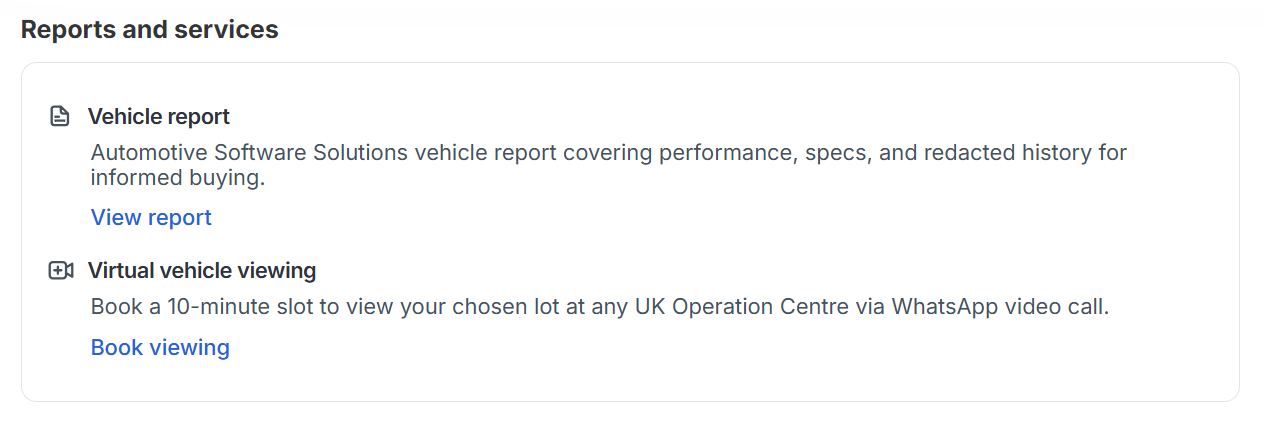
The Reports and Services section may include Vehicle Reports and Virtual Vehicle Viewing options, where available.
Virtual Vehicle Viewing can be booked online and takes place by WhatsApp video call. It gives you the chance to see a vehicle in more detail before you commit, including the interior, exterior and any areas of damage or concern where possible. This can be particularly useful if you want a closer look at specific areas before deciding whether to bid.
These tools can form part of your own checks before bidding. You may also wish to check the vehicle details on GOV.UK or complete an additional HPI check before bidding.
Before placing a bid, take time to review the available lot information, use the tools provided and carry out your own checks. Ready to start searching? Visit Copart’s Vehicle Finder or use the Copart UK Support Centre for helpful guidance before you bid.
Popular Topics
- Copart's Expanding Network with More Auctions and More Vehicles
Copart has recently announced a significant enhancement to...
- Member Success Stories – Eddie's VW Polo
Hey car enthusiasts! Today, we're diving into the world of vehicle revival...
- Practical Picks: Affordable Cars with Low Maintenance Costs
Why low car maintenance costs matter...
- Copart UK's Top Four Favourite Cars to Modify
Rev your engines and buckle up because today, we're diving headfirst into the world of car mods...
- Winter Wonders: Car Restoration Projects
As winter blankets the British landscape, petrolheads across the nation gear up for a season of precision and passion...
- Member Success Stories – Porsche 911
In our exciting new series showcasing the incredible car restorations...